- Go to any Pragmatec application, such as Learnful, OSS, PS Connect, or any other supported application.
- On the login page, click the Create an ID link.
-
Complete the registration form by providing:
- Your existing account username and password in that application (the account you used before the Single Sign-On (SSO) migration).
- A new username.
- A new password.
- Your name.
- Your email address.
- Click Create to create your Pragmatec ID.
- Once your Pragmatec ID has been created, you can use it to sign in to all supported Pragmatec applications without creating another account.
- Go to the application that you want to connect to your Pragmatec ID (e.g., PS Connect, PS Portal, CanteenCenter, Learnful, OSS, or ID Maker).
- On the login page, click the Connect link.
- Sign in using your Pragmatec ID username and password.
- Enter the username and password of your existing account for that application.
- Click Connect to link your existing application account to your Pragmatec ID.
- Once the connection is successful, you can use your Pragmatec ID to sign in to that application going forward.
What if I forgot my existing username or password?
- Click Recover on the application's login page.
- Enter the email address associated with your existing application account.
- Check your email inbox or spam/junk folder for the username and password reset message, then click the reset link provided.
- Create a new username and password, then remember them for future logins.
- Once you have recovered your account credentials, return to the login page, click Connect, and follow the steps above to link your account to your Pragmatec ID.
Related Resources
Need more help? Check out these guides.
- On the application's login page, click the Login button.
- You will be redirected to the Pragmatec ID login page. Click the Forgot Username or Password? link.
- Enter the email address associated with your Pragmatec ID.
- Check your email inbox or spam/junk folder for the account recovery email, then click the password reset link provided.
- Create a new username and password, then remember them for future logins.
- Once your account has been recovered, you can use your new Pragmatec ID credentials to sign in to any supported Pragmatec application.
Related Resources
Need more help? Check out these guides.
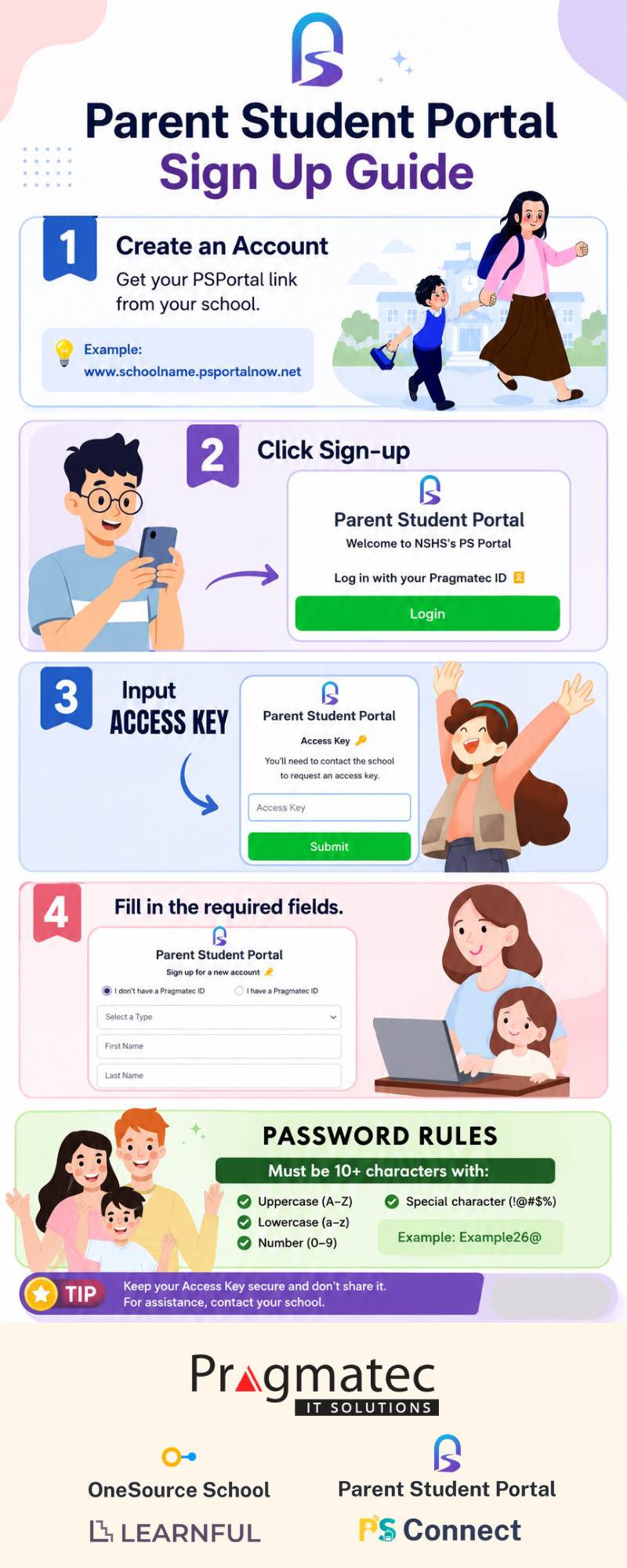
- Get your PS Portal link from your school.
- Click Sign Up.
- Enter the access key provided by your school, if required. If you don't have an access key, please contact your school for assistance.
- Choose the option that applies to you:
- I don't have a Pragmatec ID.
- I already have a Pragmatec ID.
-
Complete the required information:
- If you don't have a Pragmatec ID: Select your account type (Parent or Student), then enter your Name, Email Address, Username, and Password (must be at least 10 characters long and contain at least one uppercase letter, one lowercase letter, one number, and one special character). Then complete the captcha verification.
- If you already have a Pragmatec ID: Simply select your account type (Parent or Student), then login now with your Pragmatec ID credentials.
Related Resources
Need more help? Check out these guides.
The log in process depends on whether you already have a PS Portal account and/or a Pragmatec ID.
A. I already have a PS Portal account but don't have a Pragmatec ID
- Click Create an ID.
- Enter your existing PS Portal account credentials (Username and Password).
- Create your new Pragmatec ID by providing:
- New Username
- New Password (must be at least 10 characters long and contain at least one uppercase letter, one lowercase letter, one number, and one special character)
- Name
- Email Address
B. I already have both a Pragmatec ID and a PS Portal account
- Click Connect.
- Login with your Pragmatec ID credentials.
- Enter your existing PS Portal Username and Password.
- Your existing PS Portal account will be linked to your Pragmatec ID.
- You can now sign in to PS Portal using your Pragmatec ID.
C. I have a PS Portal account, but I don't remember my username or password, so I can't connect it to my Pragmatec ID
- Click Recover.
- Enter the email address associated with your existing PS Portal account.
- Check your email inbox or spam/junk folder for the username and password reset message, then click the reset link provided.
- Create a new username and password. Remember it for future logins.
- Once you have recovered your account credentials, click Connect.
- Enter your recovered PS Portal username and password.
- Your existing PS Portal account will be linked to your Pragmatec ID.
- You can now sign in to PS Portal using your Pragmatec ID.
Related Resources
Need more help? Check out these guides.
- Log in to your PS Portal account.
- On the Enrollment page, click Make a Payment.
- Click the Send Proof of Payment button located in the upper-right corner of the page.
-
Complete the payment information:
- Select the student (if you have multiple registered students).
- Enter the Bank Name.
- Enter the Account Number.
- Enter the Reference Number.
- Add Notes (optional).
- Upload a clear image (JPG, JPEG, PNG, GIF, WEBP, SVG, BMP, or HEIC) or PDF of your payment receipt. Maximum file size: 2 MB.
- Click Send to submit your proof of payment.
- To check your submitted proof of payment, go to Student Account > List of Proof of Payments.
Related Resources
Need more help? Check out these guides.
- Log in to your PS Portal account.
- From the sidebar, go to Student Account > View Statement of Account.
- Select the student whose Statement of Account you want to view.
-
The student's Statement of Account will be displayed,
including:
- Student details
- Summary
- Payment history
- Details of payments that have been made
Related Resources
Need more help? Check out these guides.
- Log in to your PS Portal account.
- From the sidebar, go to Grading > View Student Grades.
- Select the student whose grades you want to view.
- The student's grades will be displayed. You can review the grades for the available grading period(s) and subjects.
Related Resources
Need more help? Check out these guides.
- Click Recover.
- Enter the email address associated with your existing PS Portal account.
- Check your email inbox or spam/junk folder for the username and password reset message, then click the reset link provided.
- Create a new username and password. Remember it for future logins.
- Once you have recovered your account credentials, click Connect.
- Enter your recovered PS Portal username and password.
- Your existing PS Portal account will be linked to your Pragmatec ID.
- You can now sign in to PS Portal using your Pragmatec ID.
Related Resources
Need more help? Check out these guides.
- Log in to your PS Portal account.
- Click the profile icon (the circle with your name initial) located in the upper-right corner of the page.
-
Select Change Login. You will be presented with two options:
- Change Login
- Remove Login
- If you choose Change Login: Enter the username and password of the Pragmatec ID that you want to connect to your PS Portal account.
- If you choose Remove Login: The existing Pragmatec ID will be disconnected from your PS Portal account. Your PS Portal account will no longer be linked to that Pragmatec ID.
Related Resources
Need more help? Check out these guides.
The log in process depends on whether you already have a Learnful account and/or a Pragmatec ID.
A. I already have a Learnful account but don't have a Pragmatec ID
- Click Create an ID.
- Enter your existing Learnful account credentials (Username and Password).
- Create your new Pragmatec ID by providing:
- New Username
- New Password (must be at least 10 characters long and contain at least one uppercase letter, one lowercase letter, one number, and one special character)
- Name
- Email Address
B. I already have both a Pragmatec ID and a Learnful account
- Click Connect.
- Login with your Pragmatec ID credentials.
- Enter your existing Learnful username and password that you want to connect.
- Your existing Learnful account will be linked to your Pragmatec ID.
- You can now sign in to Learnful using your Pragmatec ID.
C. I have a Learnful account, but I don't remember my username or password, so I can't connect it to my Pragmatec ID
- Click Recover.
- Enter the email address associated with your existing Learnful account.
- Check your email inbox or spam/junk folder for the username and password reset message, then click the reset link provided.
- Create a new username and password. Remember it for future logins.
- Once you have recovered your account credentials, click Connect.
- Enter your recovered Learnful username and password.
- Your existing Learnful account will be linked to your Pragmatec ID.
- You can now sign in to Learnful using your Pragmatec ID.
Related Resources
Need more help? Check out these guides.
- Log in to your Learnful account.
- From the sidebar, go to My Students.
- Select the student whose assessment results you want to view.
- The student's enrolled classes will be displayed.
- For the subject you want to view, click the three-dot menu (⋮), then select View Activities.
- The list of activities (lessons, assessments, and discussions) for the selected subject will be displayed, along with the student's assessment statuses and results availability.
- Find the assessment you want to view, click the three-dot menu (⋮), then select View Assessment.
- The selected assessment will be displayed, where you can review the assessment questions, your child's answers, and the scores they earned.
Related Resources
Need more help? Check out these guides.
- Log in to your Learnful account.
- On the Home page, you can view the latest Announcements, as well as upcoming events and other updates. To read the full details of an announcement, simply click on its title.
- You can also view announcements from the sidebar by going to Announcements. The page will display all current announcements.
- Click any announcement to view its complete details.
Related Resources
Need more help? Check out these guides.
- Log in to your Learnful account.
- Click the profile icon (the circle with your name initial) located in the upper-right corner of the page.
-
Select Change Login. You will be presented with two options:
- Change Login
- Remove Login
- If you choose Change Login: Enter the username and password of the Pragmatec ID that you want to connect to your Learnful account.
- If you choose Remove Login: The existing Pragmatec ID will be disconnected from your Learnful account. Your Learnful account will no longer be linked to that Pragmatec ID.
Related Resources
Need more help? Check out these guides.